
How to Merge PDF Files Safely Without Losing Data
Merging PDF files is useful when you need to combine reports, invoices, scanned pages, assignments, contracts, application documents, or research material into one organized file. However, a careless merge can create privacy problems, place pages in the wrong order, increase the file size, affect digital signatures, or leave hidden information inside the final document. Knowing how to merge PDF files safely is therefore important for students, teachers, office teams, legal professionals, businesses, researchers, and anyone handling confidential or official records.
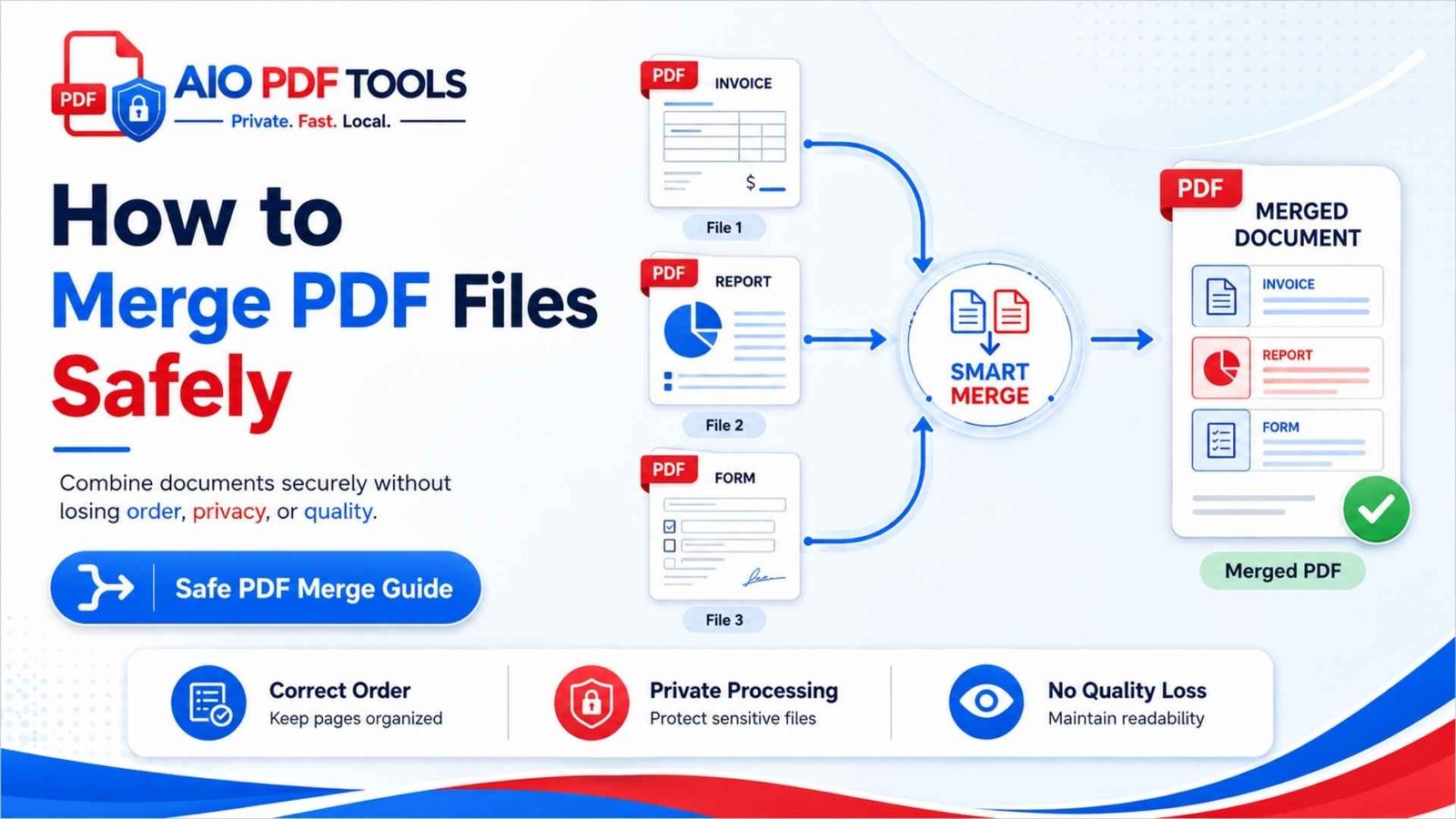
To merge PDF files safely, work from trusted copies, keep the originals, confirm that you have permission to use every document, arrange the files before combining them, and review the final PDF page by page. Avoid modifying digitally signed originals, inspect fillable forms, remove private metadata when necessary, and apply password protection only after the merge. For sensitive files, use a tool with a clear processing policy and verify the downloaded result before deleting any source document.
What Does It Mean to Merge PDF Files Safely?
A safe PDF merge produces one complete, readable, and correctly ordered document without exposing information, damaging important features, or altering evidence that should remain unchanged. Safety involves more than selecting several files and pressing a merge button.
A reliable workflow protects four things:
- Document integrity: Every required page is included once and remains readable.
- Privacy: Sensitive text, metadata, comments, attachments, and hidden content are reviewed.
- Functionality: Links, bookmarks, forms, searchability, and accessibility are tested.
- Authenticity: Signed, certified, or official files are handled without misleading changes.
A successful merge is not simply one PDF that opens. It is one PDF that remains complete, accurate, private, and fit for its intended purpose.
What Happens When PDF Files Are Merged?
A PDF merger creates a new document structure containing pages from the selected source files. Adobe’s official combining workflow allows users to preview files, expand individual pages, remove unwanted pages, and drag thumbnails into the required order before creating the final sequential PDF.
The visible pages may look unchanged, but the output is still a newly assembled document. That distinction matters when the sources contain digital signatures, security restrictions, interactive form fields, comments, attachments, scripts, or hidden data.
Is Merging PDFs the Same as Creating a PDF Portfolio?
No. A standard merged PDF places pages into one continuous document. A PDF Portfolio acts more like a container that keeps separate files inside one package. For applications, reports, assignments, and ordinary sharing, a continuous merged PDF is usually easier to read and print.
What to Check Before Merging PDF Files
A few checks before combining files can prevent most errors. Do not rely on filenames alone, especially when several versions look similar.
1. Confirm That Every File Comes From a Trusted Source
Open each PDF using an updated browser or reputable PDF reader. Be cautious with unexpected documents received through unknown email addresses, public download links, or messaging accounts. PDFs can contain links, attachments, scripts, and interactive actions, so do not ignore security warnings from your viewer.
Adobe provides security warnings and separate controls for JavaScript access, external links, and file attachments because these elements can require additional trust decisions. Never enable blocked content merely to complete a merge.
2. Check Your Permission to Use the Documents
Only merge files you own or are authorized to process. A document may contain personal data, copyrighted material, confidential business information, medical records, student details, or legal evidence. Receiving a file does not automatically give permission to redistribute it in a combined document.
3. Keep an Untouched Copy of Every Original
Work from copies rather than the only available originals. This is particularly important for contracts, signed records, certificates, identity documents, academic submissions, and archival files.
Use clear filenames:
client-contract-original.pdfproject-appendix-original.pdfcomplete-project-merged-draft.pdfcomplete-project-merged-reviewed.pdf
4. Open and Review Every Source PDF
Look for missing pages, blank scans, upside-down pages, duplicated content, unexpected attachments, comments, and visible personal information. Confirm that each file opens normally and that the page count matches your expectation.
5. Decide the Correct File and Page Order
Do not assume alphabetical filename order is the correct reading order. A safe merged file should follow the reader’s intended journey.
A common business-document order is:
- Cover page
- Table of contents
- Main report or application
- Supporting evidence
- Financial documents
- Appendices
- Signature or approval pages
For assignments, the expected order may be title page, declaration, main work, references, and appendices. Follow the receiving organization’s instructions when they specify a sequence.
6. Check Whether Any File Is Digitally Signed
A certificate-based digital signature is designed to show whether a document changed after signing. Merging a signed PDF into a new document changes the document context and may invalidate, remove, or complicate validation of the existing signature.
Adobe’s guidance on signed PDF limitations explains that signing can restrict editing and that changes to document structure may invalidate a digital signature. The safest general workflow is to merge unsigned source copies first and apply the final signature to the completed PDF.
7. Check for Passwords and Editing Restrictions
A PDF may require a password to open, edit, copy, print, or reorganize. Only remove protection when you are authorized and know the required password. Use Unlock PDF for your own permitted files before merging them.
Do not attempt to bypass a password or permissions policy on a document you do not own or have authorization to modify.
How to Merge PDF Files Safely Step by Step
1. Create a Dedicated Working Folder
Place copies of all required PDFs in one folder. Remove unrelated documents so you do not accidentally include a private or outdated file. A dedicated folder also makes it easier to compare the source list with the final PDF.
2. Rename Files in the Intended Order
Prefix filenames with numbers when the order is important:
01-cover-letter.pdf02-application-form.pdf03-resume.pdf04-certificates.pdf
This is not a substitute for checking thumbnails, but it reduces confusion when many files are involved.
3. Correct Page Orientation Before Combining
Turn sideways or upside-down pages into the correct orientation with Rotate PDF. Fixing orientation before the merge makes the preview easier to check and reduces the chance of overlooking an incorrect page.
4. Remove Unnecessary Pages
Delete duplicate covers, scanner blanks, instruction pages that should not be submitted, and obsolete attachments. Use Delete PDF Pages for selected pages or Remove Blank PDF Pages for empty scanner pages.
Keep any page required for context, evidence, terms, signatures, or compliance. A shorter file is not better when it becomes incomplete.
5. Open the Merge PDF Tool
Go to the Merge PDF tool and select the prepared files. Confirm that every chosen file belongs in the final document before starting the process.
Combine Your PDFs in the Correct Order
Prepare trusted copies, remove unnecessary pages, arrange the files carefully, and create one organized PDF. Download the result and complete the safety checks below before sharing it.
Merge PDF Files6. Arrange Files and Pages Deliberately
Use thumbnails or filenames to confirm the order. Adobe’s official merge workflow recommends previewing files, expanding pages when necessary, removing unwanted items, and dragging thumbnails into position before combining them.
For a long document, compare the final order against a written checklist. This is more reliable than visually guessing between similar pages.
7. Merge and Save With a New Filename
Do not overwrite a source PDF. Give the merged document a clear name that identifies its content, version, and status.
grant-application-complete-draft.pdfinvoice-package-july-2026-reviewed.pdfresearch-appendices-final.pdf
8. Review the Merged PDF Page by Page
Open the downloaded output immediately. Scroll through every page rather than checking only the first and last pages.
Confirm the following:
- All expected documents are present.
- No document appears twice.
- Page order is correct.
- No page is blank, cropped, rotated, or corrupted.
- Text and images remain readable.
- Headers, footers, and page numbers make sense.
- Searchable text still works where expected.
- Links, bookmarks, forms, and attachments behave correctly.
9. Rearrange the Output When Necessary
If one or more pages are misplaced, use Rearrange PDF Pages rather than rebuilding the entire document from memory. Save the corrected result as a new reviewed version.
10. Compress Only After Reviewing the Merge
Combining several image-heavy or scanned files may create a large output. Use Compress PDF after confirming that the merged content is complete.
Start with balanced compression and recheck small text, signatures, charts, stamps, and searchability. Compression should not replace deleting unnecessary pages or optimizing oversized scans.
How to Merge Confidential PDF Files Safely
Confidential PDFs require additional care because a merge can place information from several sources into one distributable document. The final file may have a wider audience than any individual source.
Review How the PDF Tool Processes Files
Before using an online tool, check whether processing occurs in the browser or on a remote server, whether an upload is required, and whether the provider explains retention and deletion. Avoid vague services that do not clearly describe what happens to your documents.
AIO PDF Tools explains supported browser-based processing on its File Security and Data Processing page. Review that information before handling private records.
Use the Minimum Necessary Documents
Do not merge an entire folder when the recipient needs only selected pages. Use Extract PDF Pages to create a limited copy containing only the relevant material.
This reduces both privacy exposure and file size. It also makes the final document easier for the recipient to review.
Redact Sensitive Information Properly
Covering text with a black shape is not reliable redaction if the original text can still be selected, copied, searched, or recovered. Use a dedicated Redact PDF tool when information must be permanently removed.
Adobe distinguishes redaction from sanitization: redaction removes visible sensitive content, while sanitization targets hidden data such as metadata, comments, embedded content, and scripts.
Remove Hidden Metadata When Appropriate
PDF metadata may identify an author, organization, creation software, dates, keywords, or editing history. The file may also contain comments, hidden layers, embedded files, or other non-visible information.
Use Remove PDF Metadata when those properties are not required. Keep a separate original if metadata has archival, evidential, or compliance value.
Protect the Final Merged PDF
Applying passwords to separate source files does not automatically guarantee that a newly merged output will carry the same protection. Review the security of the final file and use Protect PDF when access control is appropriate.
Adobe’s password-security options allow controls for opening, editing, printing, and copying. Choose protection that matches the real risk and organizational policy.
Share the File Through an Approved Channel
Password protection cannot compensate for sending a confidential document to the wrong person. Recheck the recipient, email address, shared-folder permissions, and link-access settings before sending.
When policy requires a password, communicate it through a separate approved channel rather than placing it in the same email as the attachment.
Can You Safely Merge Digitally Signed PDFs?
Digitally signed PDFs need special handling. A certificate-based signature is tamper-evident: it helps a viewer determine whether the signed content changed. Merging the signed document into a new PDF can change its structure and may affect signature validation.
Safest Workflow for Documents That Need Signatures
- Collect the unsigned source documents.
- Review and merge them in the correct order.
- Check the complete final PDF.
- Apply the required digital signature to the merged document.
- Validate the signature in a trusted PDF reader.
Adobe’s validation guidance recommends opening the signatures panel and reviewing the validation status and signer certificate details. Keep the signed final copy unchanged after approval.
What If the PDFs Are Already Signed?
Preserve the original signed files separately. Ask the receiving organization whether it accepts a merged reference copy or requires the original signed documents as separate files. Do not imply that a visual signature image in a merged copy has the same verification status as the original digital signature.
Electronic Signature Image vs. Digital Signature
An electronic signature may be typed, drawn, or inserted as an image. A certificate-based digital signature uses cryptographic validation to support identity and document-integrity checks. They should not be treated as identical.
What Happens to Forms, Links, and Bookmarks After Merging?
Interactive content needs testing because visually correct pages can still contain broken or conflicting features.
Fillable Form Fields
Test every field in the merged PDF. Adobe explains that form fields with the same name can share entered data. If two merged forms use identical internal field names for different questions, typing in one field may unexpectedly populate another.
For a distribution copy that no longer needs editing, Flatten PDF may preserve the visible filled values while making them non-interactive. Keep an editable original before flattening.
Hyperlinks
Click internal and external links after merging. A link intended to move to another page may point to the wrong location if the document structure has changed. External links should open only when you recognize and trust the destination.
Bookmarks
Bookmarks are valuable in long reports, manuals, legal bundles, and research documents. Confirm that they remain present and lead to the correct pages. Create or update bookmarks when the merged document will be read frequently.
Page Numbers
Source PDFs may each begin with page 1, producing repeated page numbers in the merged file. When one continuous numbering system is required, add it after the merge using Add Page Numbers to PDF.
Do not cover original legal, academic, or printed page numbers when they must remain visible. A new footer can identify the merged sequence while preserving the source numbering.
Searchable Text and OCR
A merged document may combine searchable PDFs with image-only scans. Test search across several sections. Use OCR PDF when scanned pages need a searchable text layer.
How to Merge PDFs Without Losing Quality
A standard merge should preserve the page content, but quality can be affected by conversion, recompression, rasterization, or later optimization. Use the original PDFs rather than screenshots or image exports whenever possible.
Avoid Printing and Rescanning
Printing files and scanning them again converts sharp digital text into page images. This can reduce readability, remove links and form fields, and create larger files.
Do Not Convert Pages to Images Before Merging
Image conversion is unnecessary when the PDFs already contain clear digital text. It can remove searchability and accessibility features. Merge the original PDF files directly.
Standardize Page Size Only When Needed
A merged document can contain Letter, A4, legal, landscape, and custom pages. Mixed sizes are not automatically a problem. Use Resize PDF Pages only when the recipient, printer, or upload system requires consistent dimensions.
Check Scanned Pages at Normal Zoom
Review small print, signatures, stamps, charts, and handwritten notes at 100% zoom. A page that looks acceptable when enlarged may be difficult to read during normal use.
Safe PDF Merging Tips for Common Tasks
| Use case | Recommended order | Main safety check |
|---|---|---|
| Job application | Cover letter, resume, certificates, references | Remove IDs or private details not requested |
| Academic submission | Title, declaration, work, references, appendices | Follow the institution’s required sequence |
| Invoice package | Summary, invoices, receipts, supporting records | Check customer names and billing periods |
| Legal bundle | Index, pleadings, evidence, exhibits | Preserve signed originals and source pagination |
| Research report | Main report, data, figures, supplementary files | Test citations, charts, and searchable text |
| Scanned archive | Chronological or catalog order | Keep archival masters separate from derivatives |
| Confidential records | Only the pages the recipient needs | Redact, sanitize, protect, and verify recipients |
Common Mistakes When Merging PDF Files
Uploading Sensitive Files Without Checking the Processing Policy
Convenience should not replace privacy review. Confirm how files are processed, transmitted, stored, and deleted before using a service for confidential documents.
Deleting the Original PDFs Immediately
Keep the sources until the final merged file has been reviewed, delivered, accepted, and backed up. The merged output may contain ordering mistakes or missing features that require a fresh attempt.
Trusting Automatic File Order
Filename order may not match the correct reading sequence. Always inspect the thumbnails and compare the result with a checklist.
Merging Signed Originals Without a Plan
Changes can affect digital-signature validation. Preserve signed originals and confirm the recipient’s requirements before creating a merged reference copy.
Assuming Password Protection Carries Over
The new PDF should be treated as a separate document. Test whether it opens without a password and apply protection to the final output when required.
Using Visual Boxes Instead of Real Redaction
A shape placed over text may leave the underlying information searchable or recoverable. Apply proper redaction and check the final PDF for hidden content.
Ignoring Form-Field Conflicts
Fields with the same internal name may behave as connected fields. Test the merged form or flatten a reviewed distribution copy when interactivity is unnecessary.
Compressing Before Checking the Merge
Review content and order first. Otherwise, a problem may be blamed on compression when it was introduced during selection or merging.
Sending the Final PDF to the Wrong Recipient
The strongest document password cannot prevent disclosure to an incorrect authorized viewer. Recheck the recipient and sharing permissions before sending.
Final Safety Checklist for a Merged PDF
Before You Share the File
- The source documents came from trusted locations.
- You had permission to merge and share every file.
- The originals remain safely stored.
- All required pages appear once and in the correct order.
- No confidential page was included accidentally.
- Rotations, page sizes, and readability are acceptable.
- Digital signatures and certificates were handled correctly.
- Form fields, links, bookmarks, and OCR were tested.
- Private metadata and hidden content were reviewed.
- The final output has the required password protection.
- The filename is clear and does not expose sensitive details.
- The recipient and sharing permissions are correct.
Frequently Asked Questions About Merging PDFs Safely
Is it safe to merge PDF files online?
It depends on the service and document sensitivity. Review how the tool processes, stores, and deletes files. Prefer clearly explained local browser processing for private documents when appropriate.
Does merging PDFs reduce their quality?
A direct merge should normally preserve page quality. Quality may fall if pages are converted to images, recompressed aggressively, printed and rescanned, or processed through low-quality conversion settings.
Can I merge password-protected PDFs?
You may need the authorized password and permission to modify each file. Remove protection only from documents you own or are permitted to process, then protect the final merged output if required.
What happens to digital signatures after merging?
Merging changes the document structure and may affect signature validity. Keep the original signed PDFs. When possible, merge unsigned copies first and digitally sign the completed final document.
Can I merge fillable PDF forms?
Yes, but test every field. Fields sharing the same internal name may display linked values. Keep an editable original and flatten only the final distribution copy when appropriate.
Will bookmarks remain after merging PDFs?
Some tools preserve bookmarks while others may alter or remove them. Open the final PDF, inspect the bookmark panel, and confirm that each bookmark leads to the correct page.
How do I merge PDFs in the correct order?
Rename source files with numeric prefixes, review page thumbnails, drag files into sequence, and compare the final PDF against a written list before sharing it.
Why is my merged PDF so large?
The sources may contain high-resolution scans, photographs, embedded fonts, or attachments. Remove unnecessary pages first, then use balanced compression and recheck quality and searchability.
Can hidden metadata remain in a merged PDF?
Yes. Source files may contain author details, comments, dates, hidden layers, attachments, or scripts. Review and remove unnecessary hidden data before distributing sensitive documents.
Should I protect each PDF before merging?
Usually, it is simpler to merge authorized unprotected working copies, review the completed document, and then apply the required security to the final output. Preserve protected originals separately.
Summary
To merge PDF files safely, begin with trusted copies, confirm permission, keep the originals, arrange every file deliberately, and review the final document page by page. Give special attention to signed PDFs, passwords, fillable forms, hidden metadata, confidential information, and interactive features. Remove unnecessary pages before combining, compress only after checking the content, and apply protection to the completed output when required. A safe PDF merge should preserve more than page appearance—it should also protect document integrity, privacy, authenticity, and usability.