
What Happens When You Upload a PDF Online?
Uploading a PDF online can feel like a simple action: choose a file, wait a few seconds, and download or share the result. Behind that button, however, several different things may happen. The browser may process the document locally, transfer it to a remote server, store a temporary copy, scan it for security issues, convert its contents, create logs, or keep it in a cloud account. Understanding this process matters to students, professionals, businesses, researchers, and anyone uploading contracts, identification, financial records, medical documents, or other private information.
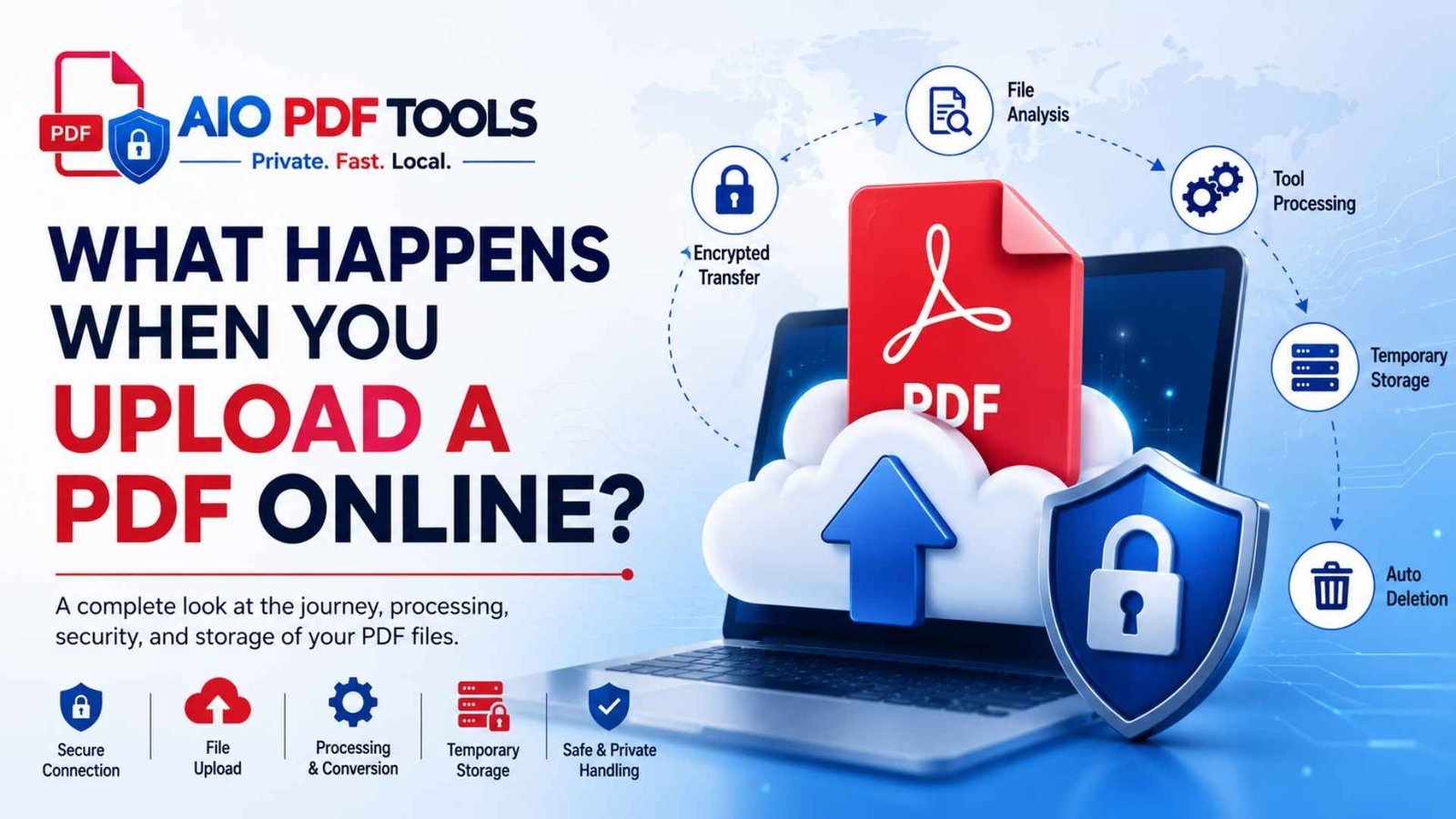
When you upload a PDF online, your browser first receives access to the file you selected. The website may then process it on your device or send its contents to a server, usually through an encrypted HTTPS connection. A server-based service may validate, temporarily store, scan, transform, and return the file. What happens afterward—including retention, deletion, backups, human access, and third-party sharing—depends on the service’s technical design and privacy policy. Always check those details before submitting sensitive documents.
What Does It Mean to Upload a PDF Online?
In everyday language, uploading means moving a file from your device to a website or online service. Technically, the meaning can be more nuanced. A web page can ask you to select a local file and then either send it to a remote server or process it inside the browser without transferring the full document.
Mozilla’s official documentation for the HTML file input explains that a selected file can be uploaded through a form or manipulated with JavaScript and the browser’s File API. Therefore, clicking “Choose PDF” does not by itself prove that the document has already left your device.
Selecting a file gives the web page access to that chosen file. Whether the document then leaves your device depends on what the website does next.
Does a Website Gain Access to All Files on Your Device?
Normally, no. Modern browsers require you to select a file or explicitly grant access. The site receives access to the chosen file rather than unrestricted permission to browse your entire storage. The browser may provide details such as the filename, size, type, and last-modified date along with access to the selected content.
This protection does not mean every selected document is safe to submit. Once a page can read the chosen PDF, its code may process the content locally or transmit it according to the site’s design.
When Does the Actual Upload Begin?
Some websites begin transferring the file immediately after selection. Others wait until you click a button such as Upload, Convert, Merge, Submit, or Process. A progress bar often indicates network transfer, but it can also represent local processing. The interface alone may not reveal the architecture.
What Happens When You Upload a PDF Online Step by Step?
The exact sequence varies between services, but a conventional server-based PDF workflow commonly follows the stages below.
1. You Select the PDF in Your Browser
The website opens the device’s file picker. After you choose a PDF, browser APIs make that selected file available to the page. According to the MDN file-input documentation, web applications can then upload the file or manipulate it with JavaScript.
At this stage, the page may read the filename, file size, media type, and modification date. It may also preview pages or check whether the file exceeds a stated limit.
2. The Website May Perform Checks in the Browser
Before any server transfer, the page can check basic conditions such as:
- Whether the filename ends in
.pdf - Whether the browser reports a PDF media type
- Whether the file exceeds the tool’s size limit
- Whether the PDF appears encrypted or damaged
- How many files were selected
These checks improve usability but are not complete security controls. A filename or reported type can be misleading, so a secure server should validate the content again if the file is transmitted.
3. The Browser Either Processes the PDF Locally or Sends It
This is the most important branch in the workflow.
- Local processing: JavaScript or WebAssembly works on the PDF in browser memory. The document may remain on your device.
- Server processing: The browser sends the PDF through a network request to the service’s infrastructure.
- Hybrid processing: Some work happens locally while another part, such as OCR or conversion, is handled remotely.
Mozilla’s File API guidance confirms that a web page can read user-selected files. The presence of browser-side code, however, does not automatically prove that no network transfer occurs.
4. A Server Upload Is Packaged Into an HTTP Request
When a file is sent to a server, the browser commonly uses an HTTP POST request and packages file data in a format such as multipart/form-data. MDN describes POST as a method for sending data to a server and explains that FormData can carry file content in the same format used by an HTML form.
The request may contain more than the document itself. Depending on the tool, it can also include:
- The original filename
- The selected processing options
- A temporary job identifier
- Session or account information
- Browser and request headers
- Language, page range, or output-format settings
5. HTTPS Usually Encrypts the Transfer
If the site uses a valid HTTPS connection, TLS encrypts the traffic between your browser and the website endpoint. Cloudflare’s HTTPS explanation describes HTTPS as encrypted communication between a browser and website.
This helps prevent ordinary network observers from reading the document during transit. However, the receiving service still needs the file in a form it can process, and HTTPS does not determine what that service does after receipt.
6. The Server Receives and Validates the File
A well-designed upload system should not trust the filename alone. The OWASP File Upload Cheat Sheet recommends controls such as allowing only expected extensions, validating file type, changing filenames, limiting size, restricting access, storing files safely, and scanning when appropriate.
Possible server checks include:
- Confirming the PDF structure or signature
- Rejecting unsupported or corrupted files
- Enforcing size and page limits
- Checking for password protection
- Scanning for malware or suspicious content
- Assigning a random internal filename
Not every service applies the same protections. A professional interface should not be treated as proof of a secure backend.
7. The PDF May Be Stored Temporarily
Server-based tools often need a working copy while they merge, compress, convert, redact, sign, or recognize text. That copy may be kept in memory, temporary disk storage, object storage, a processing queue, or a database-linked job folder.
“Temporary” is not a universal period. It can mean deletion immediately after processing, after download, after several hours, or according to a scheduled cleanup process. Some systems may also produce backups, replicas, or logs governed by separate retention rules.
8. The Service Processes the PDF
The selected operation is applied. For example:
| Online PDF task | What the system may do | Possible output change |
|---|---|---|
| Compress PDF | Downsample images and reorganize PDF objects | Smaller file with possible image-quality changes |
| Merge PDF | Combine pages and rebuild document structure | One newly assembled PDF |
| OCR PDF | Analyze scanned images and add recognized text | Searchable text layer |
| PDF conversion | Extract and rebuild text, images, and layout | A Word, image, spreadsheet, or presentation file |
| Redaction | Remove marked visible content and possibly hidden data | A sanitized distribution copy |
| Protection | Encrypt the PDF and apply permissions | Password-protected output |
9. The Service Creates and Returns an Output File
The result may be sent directly back to your browser, presented through a temporary download link, saved to an account, emailed, or transferred to connected cloud storage. The output usually has a new filename and may contain different metadata from the original.
10. Temporary Files May Be Deleted—or Retained
Deletion depends on the provider’s implementation and policy. Some tools erase working files after processing, while others keep them for a stated period to support redownloads, troubleshooting, account history, abuse prevention, or system backups.
The UK Information Commissioner’s Office says privacy information should explain the purposes of processing, who data may be shared with, and how long personal data will be kept or which criteria determine that period. A trustworthy service should provide clear, understandable answers rather than relying only on words such as “secure” or “private.”
Does Your PDF Always Leave Your Device?
No. Some browser tools can process PDFs locally. Others require server resources. The difference has major privacy implications.
| Processing model | Where the PDF is handled | Main privacy consideration |
|---|---|---|
| Local browser processing | Inside the browser on your device | The full file may not need to be transmitted |
| Remote server processing | On infrastructure controlled by the service or provider | Storage, access, retention, and deletion policies matter |
| Hybrid processing | Partly on the device and partly on a server | You need to know which data or pages are transferred |
| Cloud-account workflow | Stored under an account and processed remotely | Sharing permissions and long-term retention matter |
What Is Local Browser Processing?
Local processing uses browser technologies to read and transform the selected document on your device. The FileReader interface, File API, Web Workers, and WebAssembly can support complex client-side workflows.
Benefits can include:
- Reduced exposure of the full document to a remote processing server
- Faster operation for some tasks after the page loads
- No server waiting queue for ordinary local operations
- Ability to work with files without creating an online account
Local processing does not mean the entire website is offline. The page itself, scripts, fonts, analytics, and other resources may still communicate with servers. The important question is whether the actual PDF content is transmitted.
How Can You Tell Whether Processing Is Local?
Look for a specific statement on the service’s security or file-processing page. Useful wording should explain whether the PDF stays in the browser, whether any document content is uploaded, and which tools require different processing.
AIO PDF Tools describes its supported browser-side workflows on the File Security and Data Processing page. Review the information for the specific task you plan to use rather than assuming every online tool works identically.
Can a Local Tool Still Access the Selected PDF?
Yes. The browser must allow the page’s code to read the selected document to process it. “Local” means the work can happen on the device; it does not mean the page is unable to access the file after you select it.
Does HTTPS Make Uploading a PDF Completely Safe?
HTTPS is essential, but it is not a complete privacy guarantee. It encrypts the connection between your browser and the website endpoint and helps verify the server identity associated with the certificate.
What HTTPS Helps Protect
- The file while it travels across the network
- Form fields and processing options sent with the request
- Session cookies and authentication data in transit
- The downloaded result during its return journey
What HTTPS Does Not Tell You
- Whether the company stores your PDF
- How long temporary files remain available
- Whether employees or contractors can access documents
- Whether data is shared with subprocessors
- Whether backups contain copies
- How deletion is verified
- Whether the application itself is securely designed
An HTTPS padlock means the transport channel is encrypted. It does not independently certify the service’s storage, privacy, business practices, or internal access controls.
Stop and check: If the browser displays “Not secure,” a certificate warning, a misspelled domain, or an unexpected redirect, do not upload a confidential PDF.
Where Is an Uploaded PDF Stored, and When Is It Deleted?
A server-based PDF may pass through several storage locations. The visible privacy statement should explain the normal workflow, but technical systems can also include processing queues, temporary disks, cloud object storage, monitoring systems, and backups.
Temporary Working Storage
The service may keep a working copy long enough to process the document and provide the result. A cleanup job may delete the file after a fixed period or when the session expires.
Account Storage
If the platform offers document history, synchronization, collaboration, or cloud editing, the file may remain until you delete it or close the account. Check whether deletion moves files to a recycle bin and whether that bin has its own retention period.
Logs and Technical Records
Operational logs may record the time of request, IP address, browser details, error messages, file size, job identifier, and processing status. A good service should avoid placing sensitive document contents or unnecessary filenames in logs.
Backups and Replicas
Cloud infrastructure may create redundant copies for reliability. User-facing deletion can remove the active file while backups follow a different expiration schedule. This does not automatically mean the service acts improperly, but the retention explanation should be clear enough for the document’s sensitivity.
Why the Privacy Policy Matters
The ICO’s transparency guidance identifies purposes, retention periods, and sharing as important privacy information. Before uploading a sensitive PDF, read the service’s privacy and file-processing pages rather than relying on the homepage slogan.
You can review AIO PDF Tools’ Privacy Policy together with its dedicated file-security explanation.
What Information Can a PDF Reveal After You Upload It?
A PDF may contain more than the text and images visible on its pages. Uploading the document can expose any embedded information the processing service is able to read.
Visible Content
This includes names, signatures, account details, addresses, photographs, IDs, grades, invoices, medical information, and anything else shown on the pages.
Document Metadata
Metadata can include the title, author, subject, keywords, creation date, modification date, producing software, and other document properties. Adobe’s PDF properties guidance explains that metadata supports organization, searchability, and document control.
Use Remove PDF Metadata when private document properties are unnecessary for the recipient. Keep an untouched original if metadata has archival or evidential value.
Comments, Layers, Attachments, and Hidden Objects
PDFs may contain comments, embedded files, hidden layers, scripts, form data, deleted-but-recoverable working information, or other objects. Adobe’s PDF sanitization guidance warns that metadata, comments, hidden layers, and other sensitive content may remain inside a document.
Text Hidden Under a Visual Cover
Placing a black rectangle over text is not the same as redaction. The underlying words may remain searchable, selectable, copyable, or extractable. Use Redact PDF to remove sensitive visible content properly, then review the output for hidden information.
Original Filenames
A filename can reveal a person’s name, case number, diagnosis, employer, project codename, or internal classification. Rename the working copy before upload when the filename itself is sensitive and the service does not need it.
How PDF Uploads Differ Across Online Services
Online PDF Tools
These services process a document to merge, split, compress, convert, edit, sign, redact, or recognize text. The file may be processed locally or remotely, and the output is usually downloaded as a new document.
Cloud Storage
A cloud drive is designed to retain files rather than delete them after one task. The PDF may be synchronized across devices, indexed for search, shared through links, or made available to account collaborators.
Email Attachments
An email upload creates a copy in the sender’s mailbox and generally another copy in the recipient’s mailbox. Additional copies may appear in backups, forwarding chains, downloads, or organizational archives.
Government, University, and Job-Application Portals
Submission portals often retain documents as part of an application or official record. The file may be accessible to reviewers, administrators, service vendors, auditors, or support teams according to policy.
AI and Document-Analysis Services
These systems may extract text, classify content, summarize information, or answer questions from the PDF. Check whether document content is retained, used to improve models, shared with providers, or associated with your account.
The word “upload” therefore does not describe one universal privacy outcome. The purpose of the service strongly influences what happens next.
How to Upload a PDF Online More Safely
1. Classify the Document Before Uploading
Ask whether the PDF is public, internal, confidential, regulated, legally privileged, or highly sensitive. A free public web tool may be acceptable for a generic brochure but inappropriate for an unredacted medical or legal file.
2. Use the Minimum Necessary Content
Do not upload a 200-page record when the task requires five pages. Use Extract PDF Pages or Delete PDF Pages to create a limited working copy.
3. Remove Sensitive Information Before Uploading
Redact names, account details, addresses, identification numbers, or other unnecessary information. Review metadata and embedded content separately because visible redaction does not automatically remove hidden data.
4. Verify the Exact Domain
Look for spelling changes, extra hyphens, strange subdomains, misleading ads, and unexpected redirects. Use a saved bookmark for services you regularly trust.
5. Confirm HTTPS Without Ignoring Warnings
The address should begin with https://, and the browser should not display a certificate error. Do not proceed merely because the page visually resembles the real service.
6. Read the File-Processing Explanation
Look for direct answers to these questions:
- Does the PDF leave the device?
- Is processing local, remote, or hybrid?
- How long are uploaded and output files retained?
- Can the provider or subprocessors access the file?
- Are files used for analytics, training, or product improvement?
- What happens to backups and logs?
- Can you request deletion?
7. Avoid Public or Untrusted Networks for Sensitive Work
HTTPS protects transit, but a compromised device, fake hotspot, malicious browser extension, or phishing page can still create risk. Use a trusted device, updated browser, and known network whenever possible.
8. Keep Security Software and the Browser Updated
Updates repair known vulnerabilities and improve certificate validation, sandboxing, and file-handling protections. Do not disable browser warnings or antivirus controls just because a tool requests it.
9. Download and Inspect the Result
Confirm that the output contains the expected pages, has not lost required content, and does not include another user’s file. Test links, forms, signatures, OCR, and password protection where relevant.
10. Delete Unneeded Copies
Remove temporary local downloads and delete cloud copies when they are no longer required. The FTC’s data-security guidance recommends keeping only necessary personal information, protecting what is retained, and disposing of what is no longer needed.
Pre-Upload Safety Checklist
- I have permission to upload and process this PDF.
- I removed pages and information the service does not need.
- I checked visible content, metadata, comments, and attachments.
- I verified the domain and HTTPS connection.
- I understand whether processing is local or server-based.
- I reviewed retention, deletion, and sharing information.
- I am using a trusted device, browser, and network.
- I will inspect and securely store the output.
Using AIO PDF Tools With Privacy in Mind
AIO PDF Tools is designed for practical browser-based PDF tasks such as merging, compressing, splitting, rotating, redacting, and converting documents. Before processing any sensitive file, review the site’s File Security and Data Processing information to understand how supported tools handle selected PDFs.
Check How Your PDF Is Handled Before Processing
Review the file-processing explanation, prepare a limited working copy, remove unnecessary private information, and choose the tool that matches your task.
Review File SecurityUseful preparation tools include Remove PDF Metadata, Redact PDF, and Extract PDF Pages. After processing, use Protect PDF when password protection is appropriate for the final document.
Warning Signs Before Uploading a PDF
| Warning sign | Why it matters | Safer response |
|---|---|---|
| No HTTPS or a certificate warning | The connection may not be reliably protected | Stop and verify the official domain |
| No privacy or retention explanation | You cannot assess storage and sharing | Use a more transparent service |
| Claims such as “100% secure” without detail | The statement does not explain technical controls | Look for specific processing information |
| Requests unrelated permissions | The site may seek more access than necessary | Deny the request and leave the page |
| Unexpected executable download | The result should normally match the promised format | Do not open it; scan and delete it |
| Pop-ups imitate download buttons | You may click an advertisement or malicious link | Use the clearly labeled tool controls |
| The output contains unfamiliar pages | It may indicate a processing or isolation failure | Do not share it; report the issue |
| The service asks you to disable protection | Security controls should not be bypassed casually | Use another tool or approved software |
Frequently Asked Questions About Uploading PDFs Online
Does selecting a PDF automatically upload it?
Not always. The browser first gives the page access to the selected file. The site may process it locally, upload it immediately, or wait until you press a processing button.
Can a website see all files on my computer?
Normally, it receives access only to files you explicitly select or authorize. It should not gain unrestricted access to your storage through an ordinary file picker.
Is an uploaded PDF encrypted?
HTTPS encrypts the file during transfer between your browser and the website endpoint. Storage encryption and access controls after upload depend on the provider’s system.
Can an online PDF service read my document?
A service that processes the file must technically access its content in the browser or on a server. Whether people can access it depends on design, permissions, and policy.
How long do online PDF tools keep uploaded files?
There is no universal period. Some process files locally, some delete server copies quickly, and others retain documents for hours, account history, support, or backups. Check the policy.
Does deleting the downloaded result remove the server copy?
No. Deleting your local download affects only your device. Server or cloud copies follow the service’s deletion and retention process.
Can a PDF contain hidden personal information?
Yes. Metadata, comments, layers, form data, attachments, scripts, and other hidden objects may remain even when they are not visible on the page.
Is it safe to upload a password-protected PDF?
Protection reduces some risks, but the service may require the password to process the file. Confirm authorization, processing design, retention, and whether the final output remains protected.
What is the safest type of online PDF processing?
For sensitive files, clearly documented local browser processing can reduce document transfer. The safest choice still depends on device security, tool design, permissions, and document classification.
Should I upload confidential work documents to a free PDF tool?
Only when your organization permits it and the tool meets its security requirements. Use approved software or internal systems for regulated, privileged, or highly sensitive documents.
Summary
When you upload a PDF online, the browser first accesses the file you selected. The document may then be processed locally or transferred through HTTPS to a server that validates, stores, scans, transforms, and returns it. HTTPS protects the journey, but it does not define retention, employee access, backups, deletion, or third-party sharing. Before uploading, classify the document, remove unnecessary pages and hidden information, verify the domain, read the processing policy, and inspect the final output. The most important question is not simply whether a site says it is secure—it is whether the service clearly explains what happens to your PDF at every stage.