
How to Make a Scanned PDF Searchable
A scanned PDF may look like an ordinary digital document, but its pages often contain only pictures of printed text. That means you may be unable to search for a name, select a sentence, copy a quotation, or use the file efficiently with assistive technology. Learning how to make a scanned PDF searchable is valuable for students, teachers, researchers, legal teams, administrators, businesses, and anyone digitizing paper records. A searchable file saves time, improves document organization, and makes long scans far easier to use.
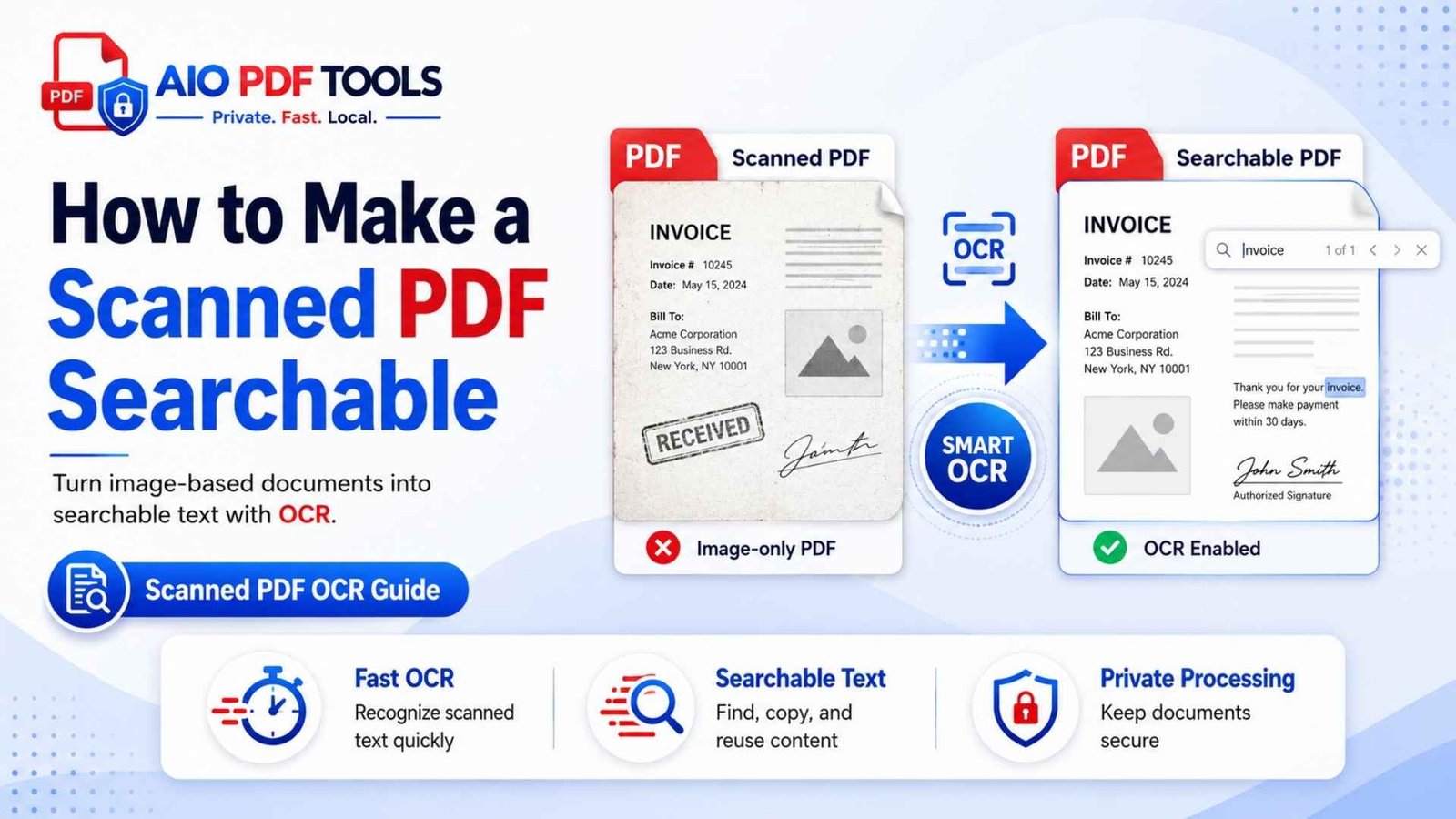
To make a scanned PDF searchable, apply optical character recognition, commonly called OCR. OCR analyzes the page images, identifies letters and words, and adds machine-readable text to the PDF. For better results, straighten tilted pages, crop unnecessary borders, select the correct document language, and use a clear scan—typically around 300 dpi for ordinary printed text. After OCR, search for several words and review names, numbers, tables, and unclear characters before saving the final document.
What Does It Mean to Make a Scanned PDF Searchable?
A normal digital PDF contains text characters that a computer can recognize. A scanned PDF commonly stores each page as a photograph. You can read the words with your eyes, but the PDF viewer may see only pixels.
Optical character recognition changes this by analyzing the shapes in each page image and identifying them as letters, numbers, punctuation marks, and words. The software then adds recognized text to the document. Adobe describes this process as creating a searchable text layer over the scanned pages.
OCR does not simply improve how a page looks. It gives the computer text it can search, select, copy, index, and process.
What Can You Do With a Searchable PDF?
- Find a word, name, date, invoice number, or reference with search.
- Select and copy text instead of typing it again.
- Index scanned records in a document-management system.
- Extract quotations and notes from academic material.
- Improve compatibility with screen readers and accessibility workflows.
- Convert recognized content into editable formats when needed.
Searchable PDF vs. Editable PDF
A searchable PDF is not necessarily fully editable. Many OCR tools preserve the original page image and place recognized text invisibly behind it. You can search or copy the text while the document continues to look like the original scan.
An editable PDF allows visible text or objects to be changed. When editing is the main goal, you may use Edit PDF after OCR, or convert the recognized file with PDF to Word. Complex layouts may still require manual formatting corrections after conversion.
How to Check Whether a PDF Is Already Searchable
Do not run OCR automatically on every PDF. A file exported from Word, Google Docs, PowerPoint, or publishing software may already contain searchable text. Applying OCR to a digitally generated PDF can be unnecessary and may introduce recognition errors.
Quick Searchability Test
- Open the PDF in your usual browser or PDF reader.
- Press Ctrl + F on Windows or Command + F on a Mac.
- Search for a clear word that appears on the page.
- Try dragging the cursor across a sentence.
- Copy the selected text and paste it into a plain-text editor.
If the search finds the correct word and the copied sentence is readable, the page already contains text. If search returns nothing and the cursor selects the entire page as one image, the PDF probably needs OCR.
Why Can Some Pages Be Searchable While Others Are Not?
A mixed PDF can contain digital pages and scanned inserts. For example, a report may have selectable body text but include image-only appendices, signed forms, receipts, or historical records. Test several pages, especially those created from different sources.
Important: A PDF may contain an inaccurate OCR layer from an earlier conversion. Searchability alone does not prove that the recognized text is correct.
How to Make a Scanned PDF Searchable Step by Step
1. Save a Backup of the Original Scan
Keep the original PDF before changing it. OCR can occasionally misread text, alter file size, or produce an output that needs to be processed again with different settings. A backup also protects the untouched scan for legal, academic, or archival use.
Use clear filenames such as:
meeting-minutes-original-scan.pdfmeeting-minutes-searchable.pdfmeeting-minutes-reviewed.pdf
2. Arrange the Pages in the Correct Order
Check whether pages are missing, duplicated, or out of sequence before OCR. Correcting the structure first prevents you from reviewing recognition errors in a file that still needs major organization.
Use Rearrange PDF Pages when scans are in the wrong order. If separate scan files belong together, combine them with Merge PDF before applying OCR.
3. Rotate and Straighten Tilted Pages
OCR engines work best when text lines are horizontal. Tesseract’s official quality guide explains that page skew can significantly reduce line-segmentation quality. Rotate pages that are sideways and deskew pages scanned at a slight angle.
The Rotate PDF tool can correct pages that are turned 90 or 180 degrees. Minor skew may require a scanner’s deskew option or image-enhancement software before OCR.
4. Crop Unnecessary Borders and Background Areas
Large dark borders, scanner-bed edges, fingers, shadows, and background objects can distract the OCR engine. Use Crop PDF to remove irrelevant areas while preserving all printed content, page numbers, stamps, signatures, and handwritten notes.
Do not crop directly against the letters. A small clean margin helps separate the page content from its boundary.
5. Remove Blank or Unnecessary Pages
OCR processing time and output size increase when the document contains empty pages. Remove scanner blanks with Remove Blank PDF Pages. You can also use Delete PDF Pages for duplicate covers, accidental photos, or irrelevant inserts.
6. Improve the Scan Quality When Necessary
OCR cannot fully recover information that is absent from a poor image. Increase contrast carefully, reduce background noise, and rescan pages that are severely blurred, cut off, overexposed, or affected by glare.
For ordinary printed text, 300 dpi is a practical starting point. ABBYY recommends 300 dpi for typical text and 400–600 dpi for smaller print. Extremely high resolution can slow recognition without producing a meaningful improvement, while very low resolution can make similar letters difficult to distinguish.
7. Select the Correct OCR Language
Language selection tells the OCR engine which character patterns, spelling rules, and writing systems to expect. Choosing English for a document written in Arabic, Chinese, Urdu, Japanese, or another language can produce poor results even when the scan is clear.
For bilingual documents, select multiple languages when the tool supports them. Do not add many unrelated languages “just in case,” because a broader character set can increase ambiguity.
8. Run OCR on the Scanned PDF
Open the OCR PDF tool, add the scanned document, choose the appropriate recognition language or options, and process the file. The resulting PDF should retain the visible scanned pages while adding searchable text.
Turn Your Scanned PDF Into a Searchable Document
Use AIO PDF Tools to apply text recognition to an image-based PDF. After processing, download the new file and verify several names, numbers, and headings before replacing the original working copy.
Make a PDF Searchable9. Review the Recognized Text
OCR is an interpretation, not a guarantee. Adobe advises users to review recognized text and correct uncertain words. Pay close attention to information where one incorrect character could change the meaning.
Review these items carefully:
- Names of people, organizations, and places
- Dates, totals, invoice numbers, and account references
- Characters such as O and 0, I and 1, or S and 5
- Small footnotes and superscript numbers
- Tables, columns, and multi-line headings
- Hyphenated words and line-break joins
- Handwriting, stamps, signatures, and faded print
10. Test Search, Selection, and Copying
Search for words from different pages rather than testing only the first page. Include at least one heading, one ordinary body word, one number, and one proper name. Then copy a paragraph and paste it into a plain-text editor to reveal hidden recognition errors.
11. Compress the Searchable PDF Only If Needed
OCR may increase or reduce file size depending on the original document and output method. If the searchable file is too large, use Compress PDF after verifying the OCR layer.
Choose balanced compression so small text remains clear. Re-test searchability after compression because some aggressive workflows can flatten, rasterize, or otherwise alter the text layer.
Best OCR Settings for a Searchable Scanned PDF
The right settings depend on the document. A clean office letter needs a different approach from a faded historical record, a receipt, or a page containing small tables.
| Document type | Useful starting settings | What to inspect after OCR |
|---|---|---|
| Ordinary printed pages | About 300 dpi, correct language, grayscale or color | Paragraphs, names, page numbers |
| Small print or dense footnotes | 400–600 dpi when rescanning is possible | Footnotes, punctuation, superscripts |
| Faded or stained pages | Grayscale, moderate contrast, background cleanup | Weak letters and broken character strokes |
| Tables and forms | Clear 300 dpi scan, straight page, visible grid lines | Columns, row order, labels, numbers |
| Multilingual document | Select only the relevant languages | Accents, scripts, names, mixed-language lines |
| Phone photograph | Even lighting, no glare, flat page, full focus | Perspective distortion and edge blur |
| Archive or official record | Preserve original scan; create a reviewed derivative | Completeness, metadata, accessibility, accuracy |
Should You Use Color, Grayscale, or Black and White?
Use color when it carries meaning, such as colored annotations, stamps, charts, maps, or highlighted instructions. Grayscale is often effective for ordinary and poor-quality printed pages because it preserves subtle differences in letter edges and background shades.
ABBYY notes that grayscale can retain more useful character information than harsh black-and-white scanning for medium- or low-quality originals. You can use Grayscale PDF when color is unnecessary, but compare the result before discarding the color original.
Should You Use 300 DPI or 600 DPI for OCR?
Use approximately 300 dpi for clear, ordinary printed text. Consider 400–600 dpi for very small fonts, barcodes, or complex scripts when the original material supports a better scan. Increasing resolution beyond what the source can provide will not restore missing detail.
Should You Preserve the Original Page Image?
For most scanned records, preserving the page image is useful because it retains the visual appearance, signatures, stamps, and layout. The searchable text layer improves discovery without replacing the evidence visible on the page.
How to Improve OCR Accuracy Before Making a PDF Searchable
Keep the Page Flat and in Focus
When using a phone, place the page on a flat surface and hold the camera parallel to it. Curved book pages and angled photographs distort the character shapes. Use a document-scanning mode when available because it can detect page edges and correct perspective.
Avoid Flash Glare and Strong Shadows
Glossy pages can reflect a phone flash and erase entire words from the image. Use bright, even room lighting and make sure your hand or device does not cast a shadow across the text.
Use Clear Contrast Without Destroying Thin Letters
Increasing contrast can separate text from a dirty background, but excessive thresholding may remove punctuation, accents, and thin character strokes. Compare several pages before processing a large document.
Deskew Every Tilted Page
A slightly crooked page may still look readable to a person, but it can disrupt line and paragraph detection. Straight text lines help OCR software identify reading order and character boundaries.
Choose the Actual Document Language
The correct language model improves recognition of vocabulary and character patterns. Adobe specifically advises selecting the correct language for non-Latin documents. For documents containing several languages, review each script separately after OCR.
Separate Unusual Page Types When Helpful
A single OCR setting may not work equally well for clean typed pages, newspaper clippings, photographs, and handwritten inserts. Extract difficult pages with Extract PDF Pages, process them separately, and merge the reviewed results when appropriate.
Do Not Expect Reliable Handwriting Recognition From Every Tool
Standard OCR is mainly designed for printed text. Neat handwriting may be recognized by specialized systems, but cursive writing, signatures, and personal notes often require manual transcription or verification.
How to Create a Searchable PDF From Paper Documents
When the paper pages have not yet been scanned, quality decisions made at the beginning can save considerable correction work later.
- Clean the scanner glass or camera lens.
- Place each page flat and align it carefully.
- Use about 300 dpi for ordinary printed text.
- Select grayscale when color is not important.
- Scan both sides when the document contains duplex pages.
- Check every page for missing edges, blur, shadows, and glare.
- Create the PDF, then apply OCR and review the result.
The Scan to PDF tool can help create a PDF from page images. If you already have separate JPG or PNG scans, use Images to PDF, arrange them correctly, and then run OCR.
Does OCR Make a Scanned PDF Accessible?
OCR is an important accessibility step because an image-only document does not provide real text for search or many screen-reader workflows. However, searchable text alone does not make a complete accessible PDF.
An accessible document may also require:
- Correct tags for headings, paragraphs, lists, and tables
- A logical reading order
- Alternative text for meaningful images
- A defined document language
- Descriptive links and form labels
- Sufficient color contrast
Adobe’s accessibility guidance treats an image-only PDF as a problem that can be addressed with OCR, but it separately requires tags, language, reading order, and other structural checks. Therefore, OCR should be viewed as the beginning of accessibility remediation rather than the entire process.
Common Problems When Making a Scanned PDF Searchable
The PDF Still Cannot Be Searched
Confirm that the OCR process completed successfully and that you opened the new output file rather than the original scan. Test several clear words. If only some pages fail, the document may contain mixed page types or damaged scans.
Search Finds the Wrong Words
The OCR layer may contain recognition errors caused by low resolution, skew, background noise, an incorrect language, or unusual fonts. Improve the page image, choose the correct language, and run OCR again from the original scan.
Copied Text Has Strange Spaces or Line Breaks
OCR software may follow the visual line endings or columns in the scan. This is common in newspapers, tables, two-column articles, and justified text. A searchable PDF can still work for finding words even when copied formatting is imperfect.
The File Became Much Larger After OCR
The output may include both high-resolution page images and an added text layer. Remove unnecessary pages and apply balanced compression only after checking OCR accuracy. Avoid aggressive settings that make the page image difficult to read.
The Software Says the Page Already Contains Text
The page may already include digital or previously recognized text. Test its accuracy before applying another OCR process. Adobe notes that some OCR workflows cannot run on pages that already contain renderable text.
Tables Are Recognized in the Wrong Order
Tables are harder to interpret when grid lines are faint, cells are merged, or the page is tilted. Use a clear, straight scan and verify every numeric column. For important data, compare the extracted text with the visible page.
Passwords or Restrictions Prevent Processing
Some protected PDFs cannot be changed without the correct permission. When you are authorized to modify the file and know its password, remove the restriction with Unlock PDF before OCR. Never bypass access controls on documents you do not own or have permission to process.
How to Handle Private Scanned Documents
Scanned PDFs may include identification, student records, contracts, medical information, financial details, legal evidence, or confidential business material. Before processing such files, check where the OCR occurs, whether the file is uploaded to a server, and how the service explains storage or deletion.
AIO PDF Tools explains its supported local browser workflows on the File Security and Data Processing page. After creating and reviewing the searchable copy, use Protect PDF when password protection fits the sharing process.
Password protection is only one security layer. Send sensitive files through an approved channel and share the password separately when organizational policy requires it.
Frequently Asked Questions About Searchable Scanned PDFs
What is OCR in a PDF?
OCR is optical character recognition. It analyzes text shown in scanned page images and adds machine-readable characters so the PDF can be searched, selected, copied, or indexed.
How do I know whether my PDF needs OCR?
Search for a visible word and try selecting one sentence. If search finds nothing and the cursor treats the whole page as an image, the document probably needs OCR.
Can I make a scanned PDF searchable without changing its appearance?
Yes. Many OCR methods preserve the original scanned image and place an invisible searchable text layer behind it, so the page continues to look like the original.
Does OCR make PDF text editable?
OCR makes text recognizable, but full editing depends on the output and software. You may need a PDF editor or PDF-to-Word conversion for substantial changes.
What resolution is best for OCR?
About 300 dpi is a practical starting point for ordinary printed text. Very small fonts, barcodes, or complex scripts may benefit from 400–600 dpi.
Why is my OCR result inaccurate?
Common causes include blur, low resolution, tilted pages, glare, background noise, incorrect language selection, unusual fonts, handwriting, and complex tables or columns.
Can OCR recognize handwriting?
Some specialized systems can recognize neat handwriting, but standard OCR is mainly intended for printed text. Cursive notes and signatures normally require manual review.
Will OCR increase the PDF file size?
It can. The result may retain page images and add a text layer. If necessary, apply balanced compression after confirming that search and copied text still work.
Can a password-protected PDF be made searchable?
Only when you have authorization and the required password or permissions. Restrictions may need to be removed before the file can be processed.
Does a searchable PDF automatically become accessible?
No. OCR adds readable text, but accessibility may also require tags, correct reading order, document language, alternative text, descriptive links, and properly labeled forms.
Summary
To make a scanned PDF searchable, first confirm that it is image-only, save the original, organize and straighten the pages, improve weak scans, choose the correct recognition language, and apply OCR. Then search several pages, copy sample text, and review important names, numbers, tables, and unclear characters. A clean 300 dpi scan is a strong starting point for normal printed text, while smaller print may require greater resolution. OCR makes scanned records easier to search and reuse, but important documents still need human verification and, when accessibility matters, additional structural work.