
How to Reduce PDF File Size Without Losing Readability
Large PDF files can slow down uploads, exceed application limits, consume unnecessary storage, and become difficult to send by email or messaging apps. Knowing how to reduce PDF file size without losing readability is especially useful for students submitting assignments, teachers sharing learning material, researchers uploading papers, job seekers sending resumes, and professionals handling reports, invoices, contracts, or scanned records. The goal is not to make every PDF extremely small. It is to remove unnecessary file weight while keeping text, charts, signatures, photographs, links, forms, and other essential content clear and usable.
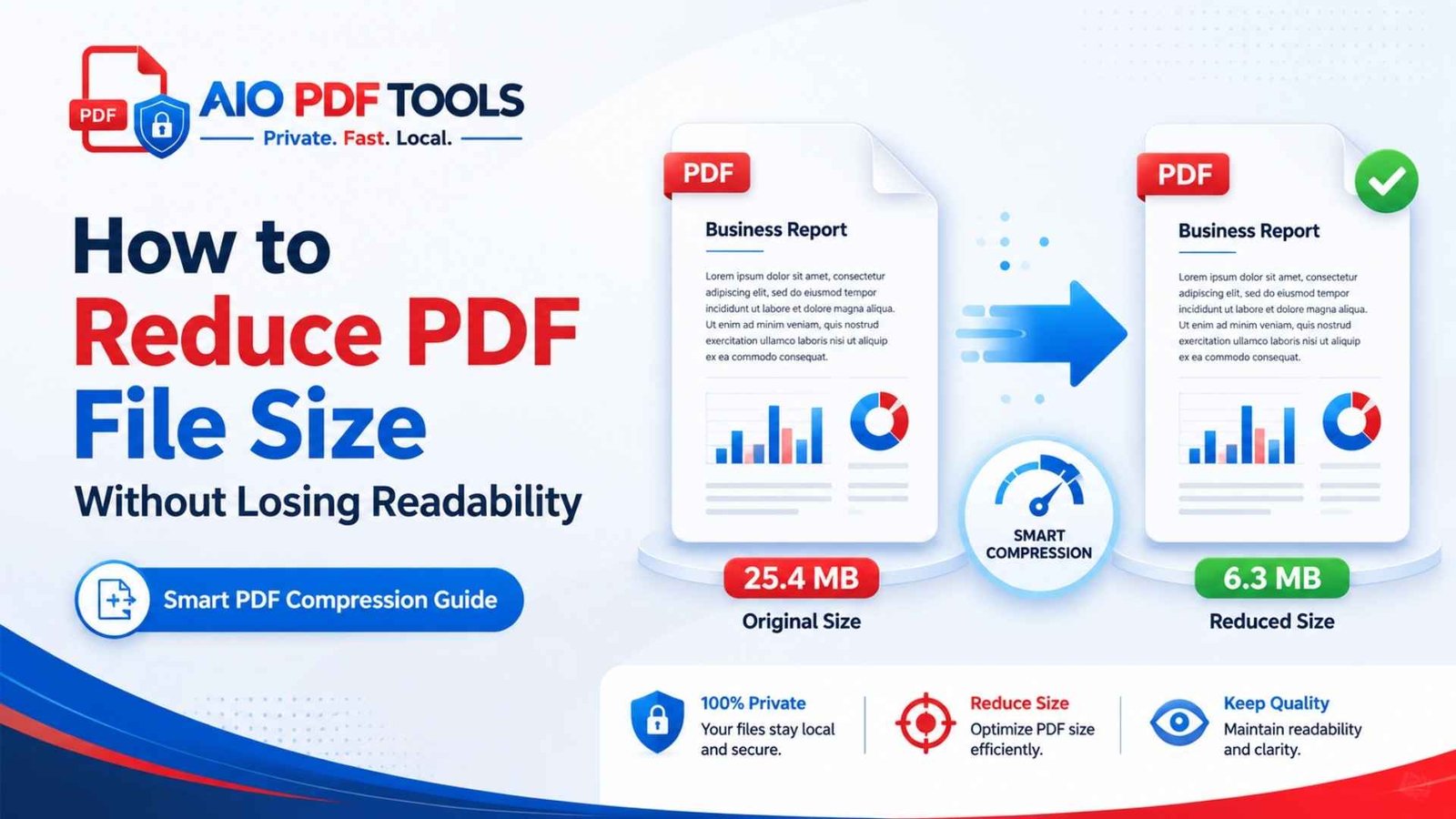
To reduce a PDF file size without losing readability, begin with balanced compression, lower the resolution of oversized images, preserve selectable text and important fonts, remove unnecessary pages or metadata, and use grayscale only when color is not meaningful. Always compress a copy of the original file, then inspect small text, charts, signatures, links, forms, and OCR searchability before sharing the result.
Compress a PDF Online Without Losing Readability
Use the AIO PDF Tools PDF compressor to reduce a document directly in your browser. Start with a balanced setting, download the result, and compare it with your original before using stronger compression.
How to Reduce PDF File Size Without Losing Quality
A PDF can contain selectable text, embedded fonts, vector graphics, photographs, scanned page images, form fields, comments, attachments, thumbnails, metadata, and hidden editing data. Effective PDF optimization is selective. Instead of aggressively compressing the entire document, identify what makes it large and reduce only the parts that do not need their original size.
1. Identify the Type of PDF First
The best compression method depends on how the document was created.
Text-Based PDF
A text-based PDF is commonly exported from Word, Excel, PowerPoint, Google Docs, or publishing software. You can usually select, search, and copy its words. These files often compress well without harming readability because the letters are stored as text or vector instructions rather than full-page photographs.
Scanned PDF
A scanned PDF is usually a collection of page images. Even though it looks like a normal document, each page may be a large color photograph. Scanned files often provide the greatest opportunity for size reduction, but they are also more likely to become blurry if image resolution is lowered too far.
Mixed-Content PDF
Reports, manuals, proposals, research papers, and presentations often combine text with charts, screenshots, scans, and photographs. In these documents, image optimization usually creates the biggest saving. However, small chart labels, equations, citations, and screenshot instructions must remain readable.
2. Keep the Original File Before Compressing
Never overwrite the only copy of an important document. Some compression settings may remove detail, comments, bookmarks, metadata, form behavior, attachments, or accessibility information. Save the compressed result as a separate file so you can compare both versions.
project-report-original.pdfproject-report-compressed.pdfproject-report-final-checked.pdf
3. Start With Balanced PDF Compression
Most PDF tools offer settings such as gentle, balanced, recommended, strong, or extreme compression. Begin with the middle option. Balanced compression is usually suitable for assignments, resumes, reports, invoices, forms, proposals, and general email attachments.
The best compression result is not the smallest possible file. It is the smallest file that preserves every detail the reader needs.
Use strong compression only when a balanced copy remains above a strict upload limit. Strong settings may blur photographs, signatures, screenshots, stamps, and fine chart labels.
4. Downsample Oversized Images Carefully
Images are often the largest part of a PDF. A photograph prepared for professional printing may contain far more pixels than a reader needs on a laptop or phone. Downsampling reduces the image dimensions stored inside the document and can produce a major size reduction.
| Document purpose | Recommended approach | Details to inspect |
|---|---|---|
| Email and screen reading | Moderate image downsampling | Body text, screenshots, faces, and logos |
| Online form submission | Balanced compression first | Signatures, stamps, dates, and ID details |
| Academic assignment | Preserve diagrams and formulas | Axis labels, equations, footnotes, and citations |
| Business report | Optimize photographs selectively | Small table text, branding, and chart legends |
| Professional printing | Use gentle compression | Fine lines, gradients, images, and color accuracy |
| Long scanned document | Optimize page images and OCR | Small print, handwriting, signatures, and stamps |
These are practical starting points rather than fixed rules. The ideal setting depends on the original image quality, page dimensions, text size, and final use.
5. Avoid Recompressing JPEG Images Repeatedly
JPEG compression is lossy, which means some visual information is discarded. Recompressing an already compressed image can add new artifacts around letters, lines, and sharp edges. Technical guidance from Ghostscript also warns that another lossy pass can substantially reduce image quality.
To limit repeated quality loss:
- Compress from the best original file available.
- Do not keep compressing the latest compressed output.
- Return to the original when testing a different setting.
- Compare fine text and sharp edges after each attempt.
6. Preserve Selectable Text and Vector Graphics
Real PDF text and vector graphics remain sharp when readers zoom in. Avoid converting every page into a flat image unless there is a specific reason. Rasterizing the whole document may make text less clear, remove search and copy functions, break links and form fields, reduce accessibility, and sometimes create a larger file.
If you need to make forms non-editable before sharing, use the dedicated Flatten PDF tool rather than turning the entire document into low-resolution page images.
7. Optimize Fonts Without Changing the Layout
PDFs may embed full font files so the document displays consistently on devices that do not have those fonts installed. Font subsetting is often a safer optimization method because it stores only the characters used in the document.
- Subset embedded fonts where the software supports it.
- Remove duplicate font resources when possible.
- Keep uncommon or essential fonts embedded.
- Avoid removing fonts completely without testing another device.
Check headings, mathematical symbols, non-English text, bold formatting, italics, and special characters after compression. Font substitution can change line breaks, symbols, and page layout even when the body text initially looks acceptable.
8. Delete Unnecessary Pages Before Compressing
Removing one unwanted page also removes its images, fonts, annotations, and other resources. This can be more effective than applying stronger compression to the entire document.
Use Delete PDF Pages to remove duplicate or irrelevant pages. For automatically detected empty scanner pages, try Remove Blank PDF Pages. You can also use Extract PDF Pages when only part of a long file needs to be shared.
Pages worth reviewing include:
- Duplicate pages
- Blank scanner pages
- Obsolete appendices
- Accidental screenshots
- Unneeded cover sheets
- Empty separator pages
9. Crop Excessive Margins When Appropriate
Large blank margins can add unnecessary image area to scanned documents. The Crop PDF tool can remove excess borders, while Resize PDF Pages can standardize unusual page dimensions.
Do not crop so tightly that you remove page numbers, comments, binding space, stamps, print marks, or handwritten notes.
10. Remove Metadata and Unused Data Selectively
PDFs can include author details, editing history, thumbnails, search indexes, embedded files, comments, multimedia, and application-specific information. Some of this data is useful, while some adds unnecessary weight or exposes information you do not intend to share.
Use Remove PDF Metadata when the document no longer needs hidden properties. Before processing confidential documents, review how supported tools handle files on the File Security and Data Processing page.
Usually safe to review for removal:
- Unnecessary document metadata
- Duplicate thumbnails
- Unused embedded files
- Obsolete review comments
- Hidden layers not needed in the final copy
Do not remove these blindly:
- Bookmarks in long reports
- Required hyperlinks
- Interactive form fields
- Digital signatures
- Accessibility tags
- Attachments required for submission
11. Export a Smaller PDF From the Source Document
When you still have the Word, PowerPoint, Excel, or design source, optimize it before export. This usually produces a cleaner result than repeatedly compressing the finished PDF.
Microsoft Office desktop applications offer a standard-quality PDF option and a minimum-size option intended for online publishing. Microsoft documents these choices in its PDF export guidance.
Before exporting:
- Resize oversized photographs.
- Crop images inside the source application.
- Remove unused slides, sheets, or pages.
- Delete hidden comments and tracked changes when appropriate.
- Use only the fonts and graphics the document needs.
- Export once from a clean final source.
12. Check the Compressed PDF at Normal Reading Size
A page may look clear at 300% zoom but remain uncomfortable at its normal reading size. Review the final PDF at 100% and, when possible, on the smallest device your audience may use.
PDF readability checklist:
- Can you read body text without excessive zooming?
- Are footnotes, citations, and table notes clear?
- Are chart labels, legends, and thin lines visible?
- Are signatures, dates, stamps, and handwritten notes recognizable?
- Can you search, select, and copy text?
- Do bookmarks and hyperlinks still work?
- Do forms, buttons, and checkboxes still function?
- Does the PDF open correctly on another browser or device?
- Is the final file below the required upload limit?
Why Is My PDF File So Large?
Understanding the source of the file size helps you choose the right solution. A text-heavy PDF may already be efficient, while a scanned PDF can contain millions of image pixels on every page.
| Cause of a large PDF | Why it adds file size | Best first action |
|---|---|---|
| High-resolution photographs | Millions of pixels are stored | Downsample images moderately |
| Full-color scanned pages | Each page is stored as a large image | Optimize resolution and color mode |
| Repeated graphics | Logos or images may be embedded more than once | Deduplicate document resources |
| Fully embedded fonts | Complete font files are stored | Subset fonts where possible |
| Attachments or multimedia | Extra files sit inside the PDF | Remove them when unnecessary |
| Comments and form data | Review and interactive objects add weight | Remove or flatten only when appropriate |
| Editing and application data | Source software may save private working information | Export a clean distribution copy |
| Redundant PDF structure | Unused and duplicated objects remain | Use cleanup or PDF optimization |
A compression tool may produce only a small reduction when the file is already optimized. In some cases, rebuilding a PDF can even create a slightly larger output because different programs encode the same content differently.
Lossless vs. Lossy PDF Compression
What Is Lossless PDF Compression?
Lossless methods reorganize or encode data without discarding the information needed to reconstruct it. Examples include compressing document streams, removing duplicate resources, subsetting fonts, deleting unused objects, and cleaning redundant metadata.
Lossless optimization is the safest starting point. However, it may not create a dramatic reduction when high-resolution images make up most of the document.
What Is Lossy PDF Compression?
Lossy methods reduce image information to create a smaller file. Examples include JPEG recompression, image downsampling, reduced image quality, fewer colors, or conversion from color to grayscale.
Lossy compression is not automatically harmful. A controlled reduction may be unnoticeable during normal reading. The problem begins when compression removes information the reader needs.
Can a PDF Be Compressed With No Quality Loss?
Sometimes. A PDF containing duplicate resources, unused objects, excessive metadata, or inefficient structure may shrink without any visible change. A major reduction in an image-heavy file, however, normally requires some change to image resolution, color, or encoding.
For that reason, “without losing readability” is a more practical goal than promising absolutely no technical quality loss.
How to Compress a Scanned PDF Without Blurry Text
Use a Sensible Scanning Resolution
For ordinary printed text, 300 dpi is a widely used starting point for optical character recognition. Very small print, fine drawings, barcodes, or detailed archival material may need a higher resolution. ABBYY’s source image recommendations explain why insufficient resolution can reduce OCR accuracy.
Scanning every page at extremely high resolution creates unnecessary file weight when the document is intended only for normal on-screen reading.
Use Grayscale When Color Adds No Meaning
Grayscale can significantly reduce the data in full-color scans. It is useful for letters, receipts, contracts, printed forms, handwritten notes, and textbook pages where color does not communicate important information.
Use the Grayscale PDF tool when you do not need color. Keep the original colors when they distinguish chart data, medical information, highlighted instructions, maps, annotations, stamps, or brand elements.
Run OCR When Searchability Matters
Optical character recognition adds searchable text to scanned page images. OCR does not guarantee a smaller file, but it improves usability by allowing readers to search, select, and copy words.
Use OCR PDF for existing scanned files or Scan to PDF when creating a document from new page images.
After OCR and compression, test:
- Search results
- Copy and paste
- Special characters
- Table and column recognition
- Page rotation
- Text alignment
- Reading order when accessibility matters
Best PDF Compression Settings for Different Uses
PDF Compression for Email
Use balanced compression. Keep text, links, signatures, and logos clear. Moderately reduce photographs and remove unnecessary attachments or pages before increasing the compression strength.
PDF Compression for an Online Application
Check the exact upload limit first. Preserve identity details, dates, signatures, stamps, and small form text. Do not use extreme compression unless a balanced version still exceeds the required limit.
PDF Compression for Academic Submission
Preserve formulas, citations, graphs, table notes, screenshots, and references. Search the compressed copy to confirm that the text layer remains usable and inspect diagrams at normal reading size.
PDF Compression for Mobile Reading
Reduce oversized images and test the result on a phone. Readers should be able to understand small labels without constant zooming, and pages should load and scroll smoothly.
PDF Compression for Professional Printing
Choose gentle compression or a print-quality export. Preserve high-resolution images, color accuracy, transparency, fine lines, and print-specific settings. Always request the printer’s preferred PDF requirements when the output is commercially important.
PDF Compression for Archiving
Do not optimize an archival document only for the smallest size. Retain required metadata, fonts, accessibility information, attachments, signatures, and archival-standard features. The PDF Association’s PDF/A guidance is a useful starting point for long-term preservation requirements.
How to Reduce the Size of Multiple PDF Files
When you need to optimize several documents, processing them individually can be repetitive. Use the Batch Compress PDF tool to handle multiple files in one workflow. Apply a balanced setting first, then inspect a sample from the batch before distributing every output file.
Common PDF Compression Mistakes to Avoid
Choosing Extreme Compression First
This approach saves time only when the output remains usable. More often, it creates blurred details and forces you to repeat the process. Begin with balanced compression and increase it gradually.
Judging the Result Only by File Size
A tiny file is not successful when the reader cannot understand it. Compare size, readability, functionality, searchability, and compatibility together.
Compressing the Same Output Repeatedly
Repeated lossy compression can compound visual damage. Return to the original PDF whenever you test a different setting.
Converting Every Page Into an Image
This can destroy text search, selection, accessibility, hyperlinks, bookmarks, and form fields. It may also increase the file size rather than reduce it.
Removing Fonts Without Testing
Unembedded fonts may be replaced on another device. That can change spacing, line breaks, symbols, and the document layout.
Ignoring Small but Important Details
Body text may remain sharp while footnotes, chart labels, signatures, stamps, or screenshot instructions become unreadable. Review the smallest meaningful content, not only the main paragraphs.
Assuming Fast Web View Means a Smaller PDF
Fast Web View, also called linearization, reorganizes a PDF so the first page can begin loading before the entire file downloads. It improves web delivery but does not guarantee a meaningful reduction in total file size.
Deleting Interactive or Accessible Features
Advanced cleanup settings may remove forms, comments, bookmarks, links, attachments, multimedia, or document structure. Review every option before applying it to a file that other people must use.
How to Compress Confidential PDF Files More Safely
Confidential PDFs may contain financial details, identification, student records, contracts, research data, or private business information. Before selecting a tool, check whether processing occurs on the device or through a remote server, how long files are retained, and whether the provider explains its security practices.
AIO PDF Tools describes supported local browser processing on its file security page. After reducing a confidential file, you can also use Protect PDF when password protection is appropriate. Remember that password protection does not replace careful access control or secure sharing.
Frequently Asked Questions About Reducing PDF Size
How do I reduce PDF size without making text blurry?
Use balanced compression, preserve real text and fonts, and reduce only oversized images. Avoid rasterizing pages or applying extreme compression. Check footnotes, signatures, screenshots, and chart labels before sharing the result.
Why is my PDF still large after compression?
The file may already be optimized or may contain high-resolution scans, embedded fonts, attachments, multimedia, or content that cannot be reduced safely. Remove unnecessary pages and return to the source document when possible.
What is the best PDF compression level?
Balanced or standard compression is the best starting point for most school, work, email, and online-submission documents. Use gentle compression for printing and strong compression only when a strict size limit requires it.
Does compressing a PDF reduce text quality?
Selectable text normally remains sharp when the tool preserves text and vector content. It becomes blurry when pages are rasterized, scanned images are downsampled too aggressively, or the original already contains low-resolution text images.
How can I make a scanned PDF smaller?
Use an appropriate scanning resolution, crop unnecessary borders, choose grayscale when color is not important, run OCR when needed, and apply moderate image compression. Inspect small print, handwriting, signatures, and stamps afterward.
Is 300 dpi enough for a scanned PDF?
It is a common starting point for ordinary printed text and OCR. Small print, detailed drawings, barcodes, or archival material may require higher resolution. Test the final scan against its intended use.
Will converting a PDF to grayscale reduce its size?
It often reduces files containing many full-color scans or images. Keep color when it distinguishes chart data, instructions, annotations, branding, maps, medical details, or other meaningful information.
Should I remove embedded fonts to make a PDF smaller?
Font subsetting is usually safer than complete removal. Unembedding fonts can trigger substitutions on other devices and change symbols, spacing, line breaks, or the page layout.
Can I compress a digitally signed PDF?
Changing a signed PDF may affect signature validity. Preserve the original signed file and verify the signature after processing. For formal workflows, reduce the file size before applying the final digital signature.
Is an online PDF compressor safe for private documents?
Safety depends on how the service processes and stores files. Review its privacy and file-processing information before uploading confidential material. Prefer clearly explained local browser processing when appropriate.
Summary
To reduce PDF file size without losing readability, compress selectively instead of aggressively. Begin with a balanced setting, preserve selectable text and essential fonts, optimize oversized images, use sensible scan resolution, and remove unnecessary pages or data. Keep important links, forms, signatures, and accessibility features intact. Save the original, test the output at normal reading size, and choose the smallest version that still works for its audience and purpose.